Setup GitHub Account on Windows

This guide provides step-by-step instructions for setting up new GitHub Account on Windows.

Note: The screenshots may vary from system to system

Follow the below steps to create a new account on GitHub:

Step 1: Navigate to GitHub official site: https://github.com/


Step 2: Click on Sign up


Step 3: Click on Create an account by following below steps.


Step 4: Enter details and click Continue

Step 5: Now to verify your account, click on Visual Puzzle


Step 6: Solve the puzzle and Submit


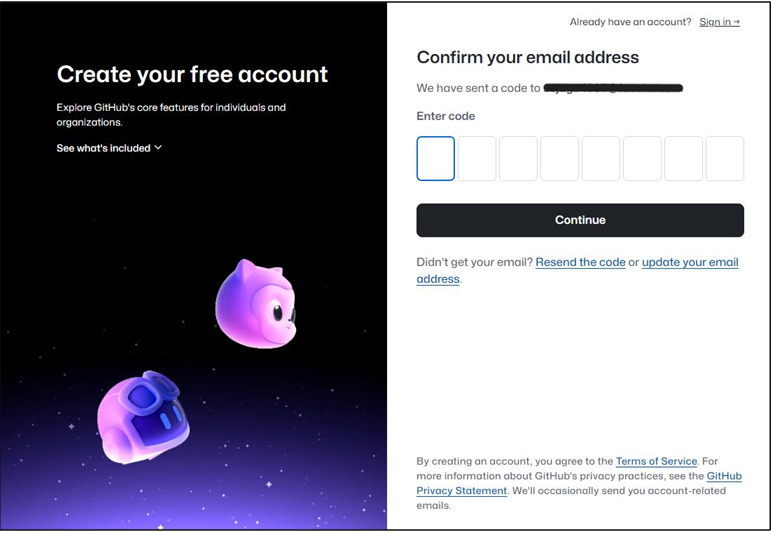
Step 7: Confirm your email address by entering code sent to your email Id


Step 8: Two factor authentication (Optional)

  • Click on send SMS to receive Authentication Code
  • Enter Authentication code to continue

Step 9: By now GitHub Account is created successfully

Step 10: Try and login to your newly created GitHub Account


Installing GitHub Desktop on Windows

Getting Started with GitHub Desktop on Windows: A Beginner's Guide

This guide provides step-by-step instructions for setting up GitHub Desktop on Windows. It is designed for beginners who want to start using version control with GitHub and GitHub Desktop through a simple and user-friendly workflow.

In this guide, you will learn how to:

  • Install GitHub Desktop on Windows
  • Create a new repository in GitHub Desktop

Note: The screenshots may vary from system to system

Step 1: Download GitHub Desktop

  1. Open your browser and go to the official site: https://desktop.github.com/download/
  2. Click on the "Download for Windows" button.

Step 2: Run the Installer

  1. Once the .exe file downloads (GitHubDesktopSetup.exe), double-click it to run.
  2. It will automatically install GitHub Desktop.
  3. After installation, it should open automatically.
  4. If not, go to Start Menu → search "GitHub Desktop" → click to open it.

Step 3: Sign In to GitHub

  1. On first launch, you'll see a screen asking you to Sign in to GitHub.com
  2. Click "Sign into Github.com", and a browser window will open.

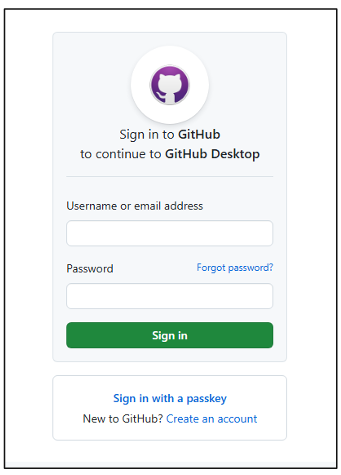
Step 4: Log in to your GitHub account

  1. Enter the email and password and click sign in

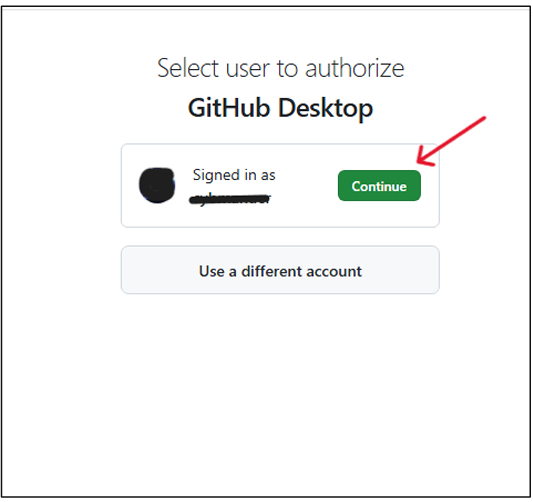
Step 5: Authorize GitHub Desktop to access your account.

  1. Click on continue for the displayed account
  2. Click on Authorize desktop to continue
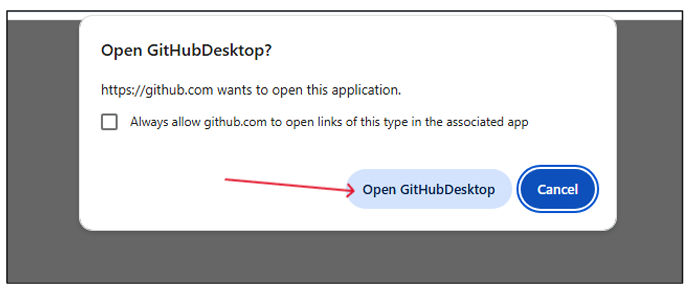
  3. Then, Click Open GithubDesktop on next pop-up Box
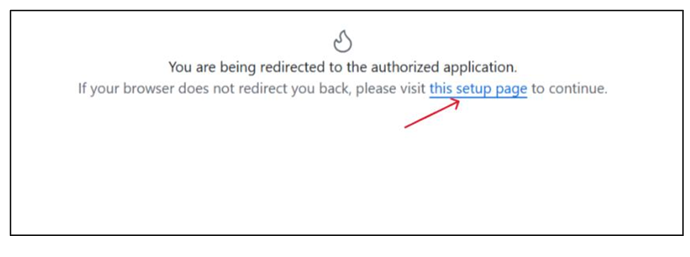
  4. If it does not redirect, then click on the link given on the page to redirect

Step 6: Configure Git on Desktop Application

  1. Click Finish once you verify the auto populated details
  2. To edit the details select Configure manually radio button (optional)
  3. Click Finish

Step 7: You're Ready to Use GitHub Desktop!

You can now:

  1. Clone repositories
  2. Create new ones
  3. Add an Existing repository
  4. Commit, push, pull, merge, resolve conflicts — all with a GUI. (Below image may vary)

Create a New Repository (Locally and on GitHub)

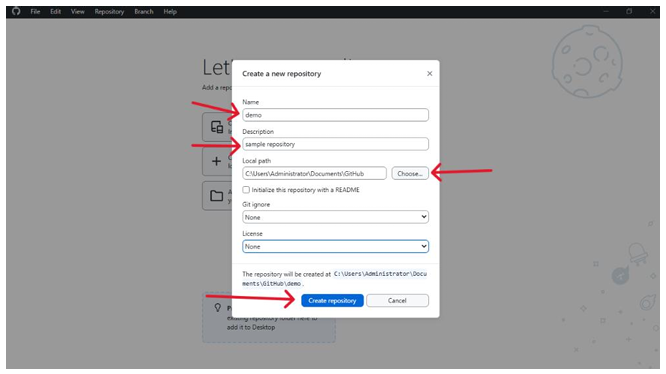
  1. Click on → Create a New Repository on your local drive
  2. Fill out the details:
    • Name: Name of your project.
    • Description (optional).
    • Local Path: Choose where to save it on your PC.
    • Optionally: Initialize with a README or.gitignore.
  3. Click Create Repository.
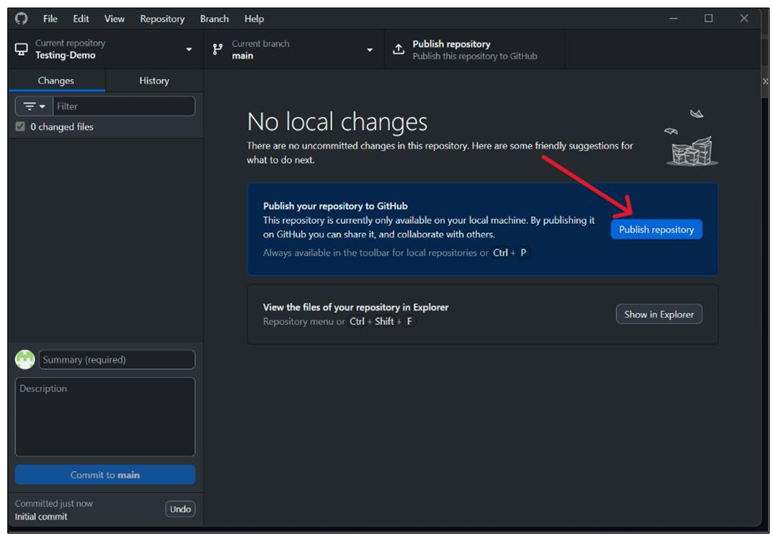
  4. To upload it to GitHub:
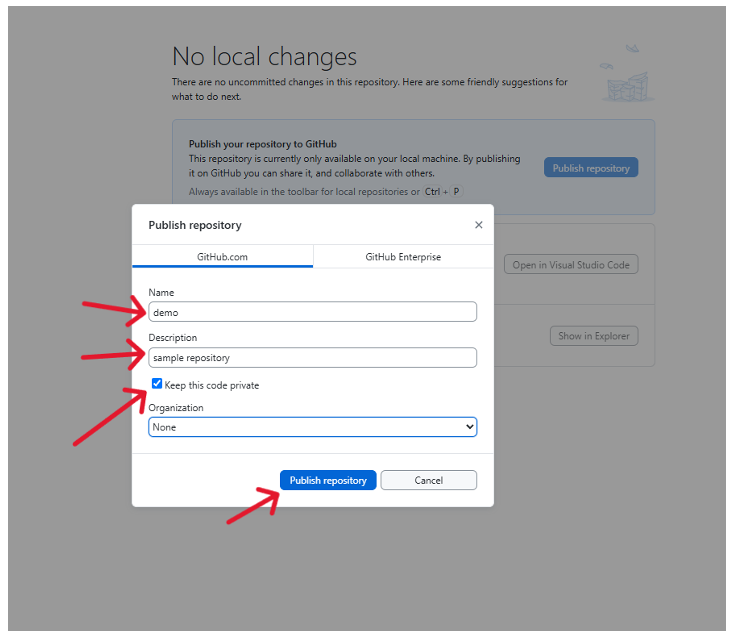
    • Click Publish repository
    • To set visibility to Public or Private (check/uncheck the box)
    • Click Publish Repository (Organization is optional)

Contact Us

Please fill the form below to get more information

Please wait we are capturing your information.

Your Response was submitted. our team will contact you shortly.